ArchCG Tools
For the space between idea and final visual.
A collection of tailored tools for 3ds Max, ArchViz and AI-assisted image-making.
From organizing model libraries and previewing cameras to creating materials, animating approved views and exploring visual directions — choose the tool that fits the task at hand.
3ds MaxTailored utilities
Demo firstSee how it works
GumroadPurchase & download
Featured Demos
Selected tools in action.
Preview a selection of tools before opening a product page. More demos are available from the product catalog below.
Workflow Stages
Use the right tool at the right moment.
The tools are easier to explain as a CGI workflow: prepare assets, capture previews, create materials, add motion, then explore or refine visual output.
01
Asset preparation
PolySorter
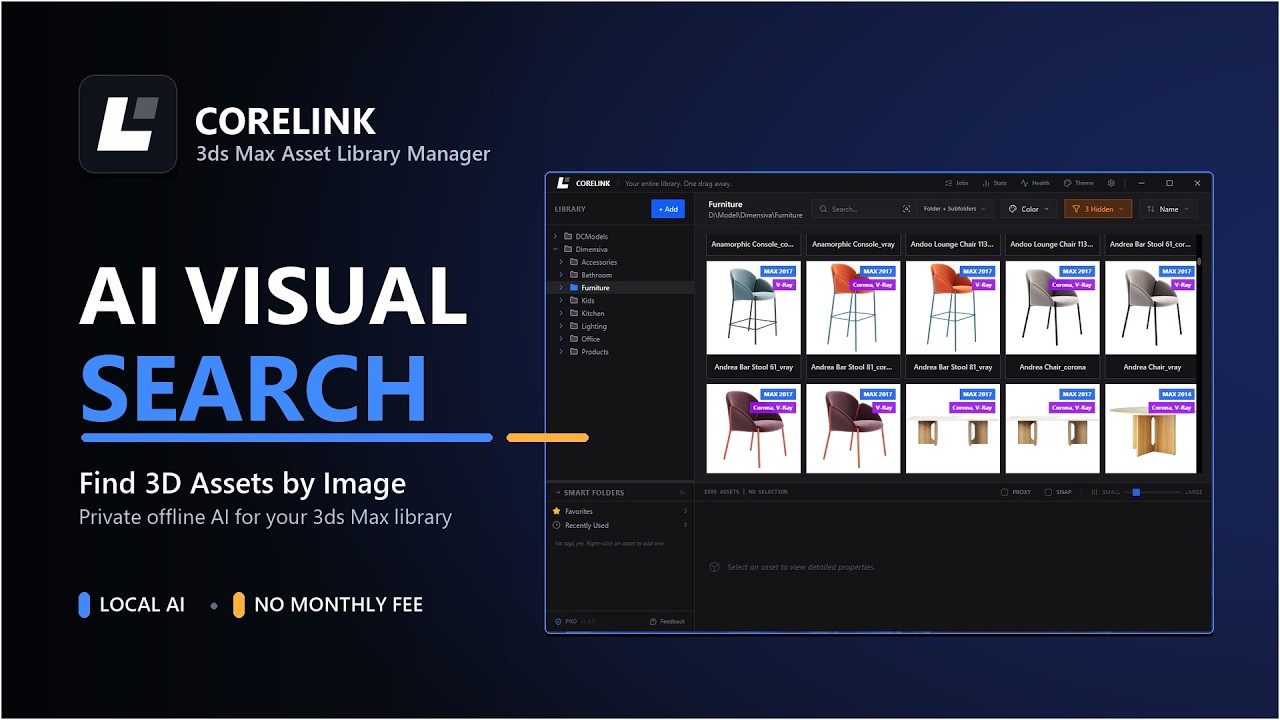
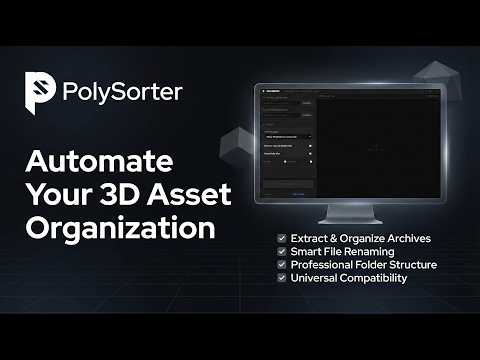
Organize downloaded model packages, folders, textures and files into a cleaner reusable library.
CoreLink
Browse and reuse your organized 3D asset library inside a clearer 3ds Max workflow.
02
Preview and planning
SceneShutter
One-click export all your camera previews in different aspect ratios before rendering — useful for camera review, planning and quick discussion.
CamAlign
Coming SoonAlign 3D cameras to drone and aerial photos using reference points for accurate photomontages.
03
Material creation
MatSnap AI
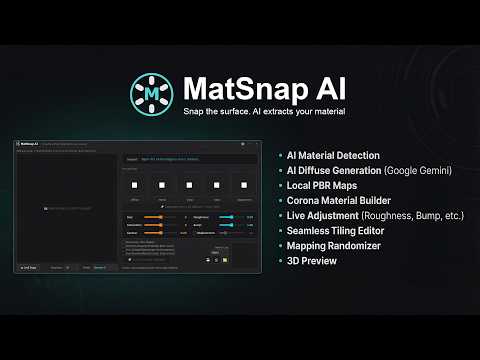
Create seamless PBR material sets from reference photos, screenshots or prompts, then continue inside your 3ds Max material workflow.
04
Animation
CineMove
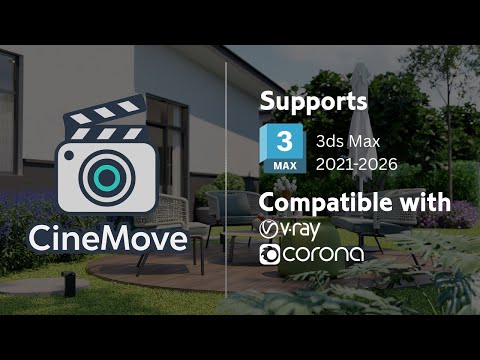
When a CGI angle is approved, turn the still camera view into animation with dolly, pan, tilt, truck, zoom or orbit moves.
ArborSway
Add wind movement to GrowFX trees and vegetation when a still scene needs to become an animation.
05
Explore and refine
PixPatch AI
Use preview captures to brainstorm mood, lighting, material, people or prop options early. After rendering, touch up, refine, change style or turn still images into motion ideas.
Tool Catalog
Choose the tool that fits your workflow.
Browse the full tool set below. Each card shows what the tool helps with, where it fits in the CGI process, and where to watch or open the product page.
Downloaded Assets
PolySorter
Library Prep
ArchCG Tools
Downloaded Assets
PolySorter
Unpack and organize downloaded 3D model packages into a consistent structure, ready for a reusable asset library.
Asset Browser
CoreLink
Browse & Reuse
ArchCG Tools
Asset Browser
CoreLink
Browse and reuse assets from your organized library directly inside 3ds Max.
Camera Preview
SceneShutter
Safe Frame
ArchCG Tools
Camera Preview
SceneShutter
One-click export clean safe-frame previews in different aspect ratios from multiple cameras before committing to a render.
Camera Match
Coming Soon
CamAlign
Drone & Aerial
ArchCG Tools
Camera Match
COMING SOON
CamAlign
Automatically align your 3D camera to aerial and drone photographs. Mark reference points to solve position, rotation, and focal length for accurate compositing.
Coming Soon
Watch Demo
Material Creation
MatSnap AI
PBR Material
ArchCG Tools
Material Creation
MatSnap AI
Turn references, screenshots or prompts into seamless PBR material sets.
Camera Animation
CineMove
Still to Motion
ArchCG Tools
Camera Animation
CineMove
Transform an approved still camera into controlled architectural animation.
Tree Motion
ArborSway
GrowFX Wind
ArchCG Tools
Tree Motion
ArborSway
Add wind-driven movement to GrowFX trees and vegetation with less repetitive setup.
AI Visual Workflow
PixPatch AI
Explore / Refine
ArchCG Tools
Explore / Refine / Animate
PixPatch AI
Explore visual directions, refine rendered details and experiment with image-to-motion ideas.
Common Paths
Start from the problem.
Use these paths when you already know the problem you want to solve.
01
Downloaded models are messy.
Use PolySorter first, then browse the cleaner library with CoreLink.
02
You need camera options.
Use SceneShutter to capture safe-frame previews in different aspect ratios before committing to render time.
03
You need a material quickly.
Use MatSnap AI to create PBR material sets from references or prompts.
04
The still view needs motion.
Use CineMove for camera movement, ArborSway for tree and vegetation movement, or PixPatch AI for image-to-motion ideas.
FAQ
Before you open the product page.
Where do I buy the tools?
Open the product page from each tool card. Purchase and download are handled through Gumroad.
Can I watch the tools before buying?
Yes. Use the embedded demos and demo links to see how each tool works, then open the product page when the workflow matches your project.
Is this one large software platform?
No. It is a tailored set of workflow tools. Each tool solves a specific task inside or around the 3ds Max / ArchViz process.
Are all tools AI tools?
No. Some are utility tools for 3ds Max workflow, while MatSnap AI and PixPatch AI use AI for material creation, visual exploration and refinement.
How do I get support or share feedback?
Email support@archcg.my for product support, questions or feedback.
ArchCG Tools
Watch the demo, then choose the tool.
Start with the demos, compare the workflow stages, then open the product page for the tool that fits your current task.
Support & Feedback — support@archcg.my